Google Local Service Ads put you at the very top of search with Google Guaranteed trust — pay per lead, not per click.
In the competitive pest control market, standing out is essential.
Homeowners and businesses often turn to Google when they need pest control services. This makes it crucial for pest control companies to use every available tool to ensure their services appear first in search results.
Local Service Ads (LSA) are especially important in a digital marketing strategy for pest control, as they not only increase visibility but also provide a trusted connection to local customers searching for these services.
Why LSA Is Crucial for Pest Control Businesses
Local Service Ads (LSAs) are important for pest control businesses, as they place your business at the top of Google's search results, above both paid search ads and organic listings. This prominent positioning helps capture the attention of potential customers precisely when they need pest control services.
Moreover, LSAs offer an added layer of trust through Google's Guarantee badge, awarded to businesses that pass Google’s screening and qualification process. This badge reassures potential customers of your credibility, significantly increasing the chances they will choose your service over competitors.
Local Service Ads (LSAs) operate on a pay-per-lead basis, meaning you only pay for leads directly related to your pest control services. This cost-effective model allows you to focus your marketing budget on leads with high conversion potential and encourages maintaining high-quality service, as customer satisfaction directly impacts lead quality.
In this chapter, we will explore how Local Service Ads work, how to set them up, and how to optimize your LSA profile for maximum lead generation and conversion. We'll cover the importance of reviews, how to effectively manage leads, and strategies for standing out among local competitors. Additionally, we will discuss how to measure the success of your LSAs and make data-driven decisions to continually improve your return on investment.
For pest control companies aiming to expand and connect with more local customers, understanding and utilizing Local Service Ads is essential. LSAs provide unmatched visibility, credibility, and customer engagement compared to traditional advertising methods. As we explore how LSAs work, you'll learn how to use these ads to meet and exceed your business growth goals.
Why LSA is the Ideal Lead Generation Tool for Home Service Businesses
- Targeted Customer Acquisition: Connect directly with qualified leads actively searching for services like yours within your local area.
- Streamlined Lead Management: Benefit from a user-friendly dashboard that simplifies lead management and campaign performance tracking, akin to a Customer Relationship Management (CRM) system.
- Cost-Effective Lead Generation: The pay-per-lead structure ensures you only incur costs when a potential customer expresses interest through LSA, making it a budget-conscious marketing strategy.
Before proceeding in creating your Google Local Service Ads (LSA) Account, check your eligibility for Google Guaranteed Badge.
Eligible Home Services
- Appliance Repair
- Carpenter
- Carpet Cleaning
- Countertop Pro
- Drain Expert
- Electrician
- Fencing Pro
- Flooring Pro
- Foundation Pro
- Garage door
- General Contractor
- Handyman
- Home Inspector
- Home Insulation
- Home Security
- Home Theater
- House Cleaning
- HVAC
- Junk Removal
- Landscaper
- Lawn Care
- Locksmith
- Moving Services
- Painter
- Pest control
- Plumber
- Pool Cleaning
- Pool Contractor
- Roofing
- Sewage System
- Siding Pro
- Snow removal
- Tree services
- Water Damage Restoration
- Window Cleaning
- Window Repair
Step-By-Step Guide to Set Up LSA
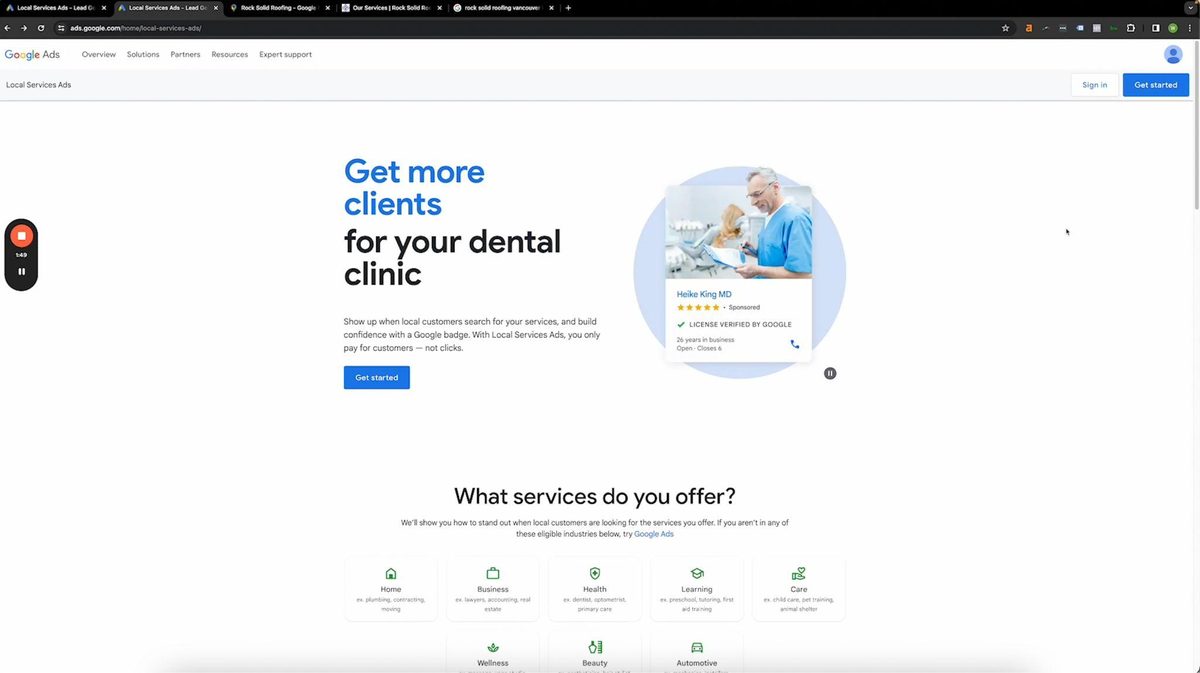
Head on to ads.google.com.home/local-service-ads/ and you will see this home window. Sign in if you already have one but if you don’t click, “Get Started” on the top right part of the page.
You will also see other industries that are eligible for LSA.
Signing Up for LSA Account
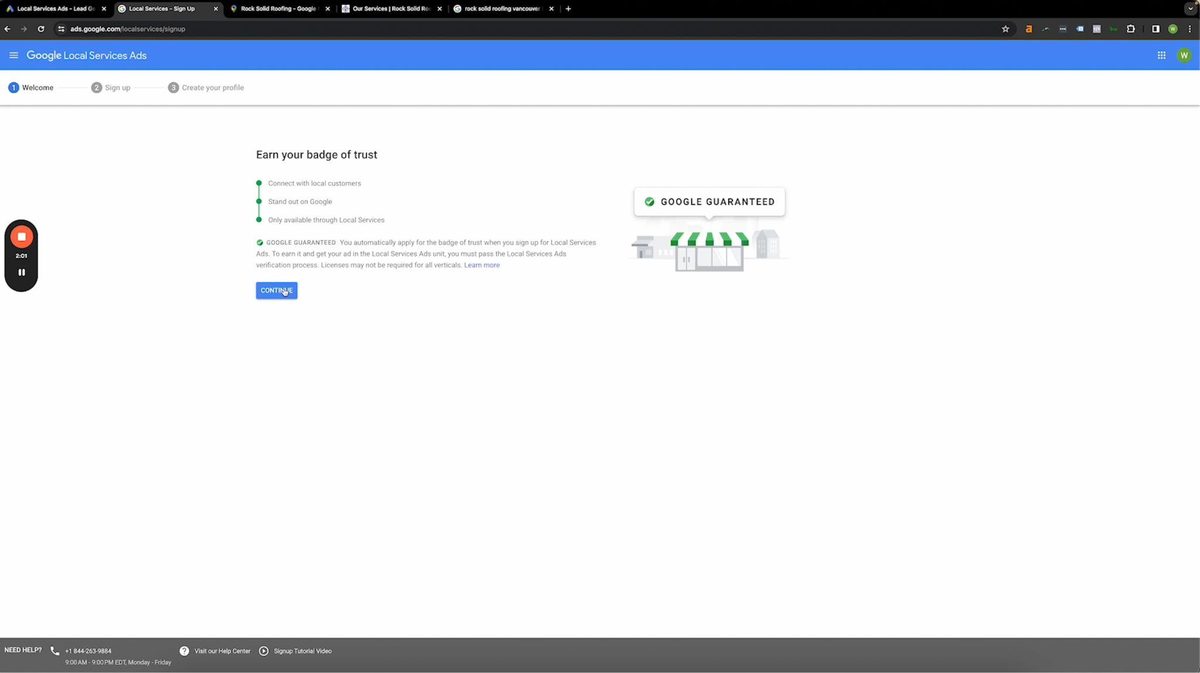
- Head on to ads.google.com/localservices/signup and click “Continue”
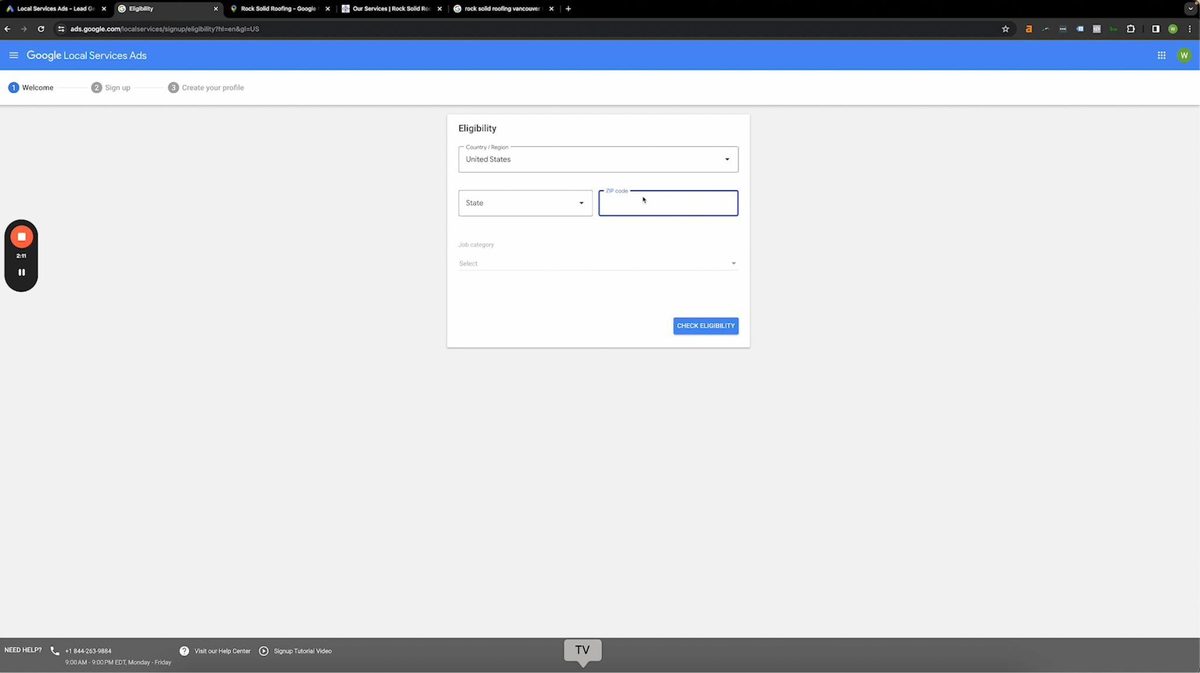
- You will be redirected to the Eligibility window where you can type in your Country or Region, State, ZIP code, and Job Category. Once that’s done, click the blue “Check Eligibility” button.
- Choose which Google or current email to use for Local Service ads. Make sure that you have access to it because this is where emails will be sent about leads and billing. Type in the preferred email and click “Next.”
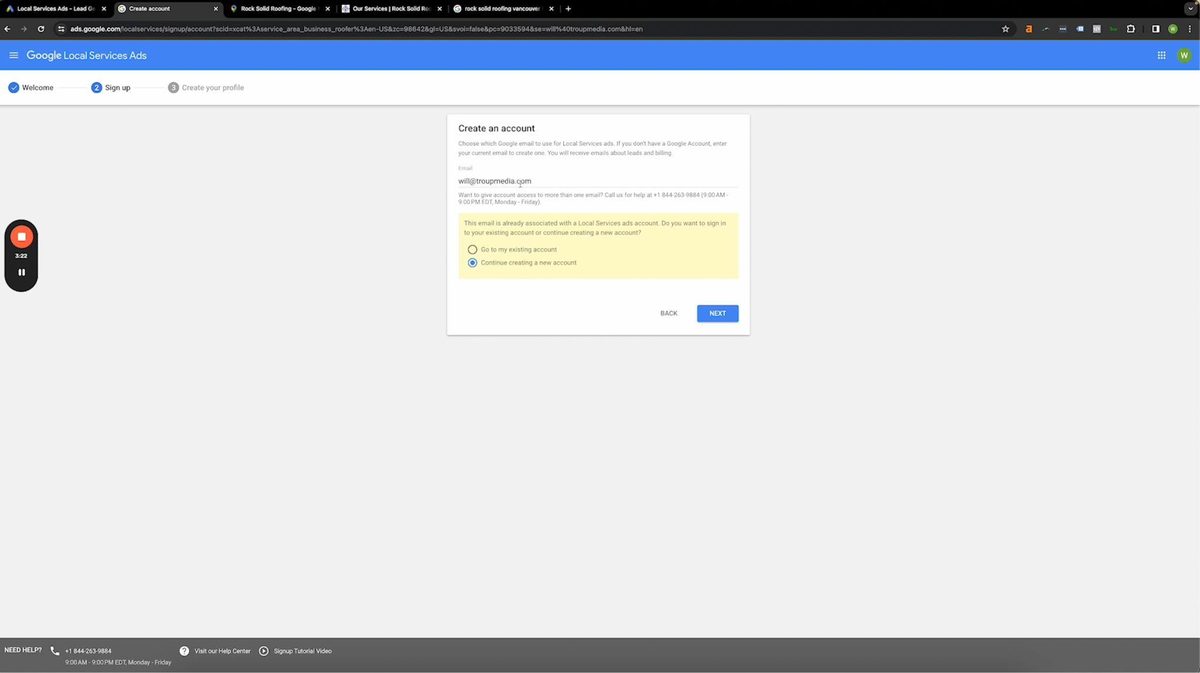
If you're setting this up for a client, you are able to relinquish ownership by just removing yourself and they will become the sole owner of the local service ads account.
A window will pop-up and just click on “Get Started.”
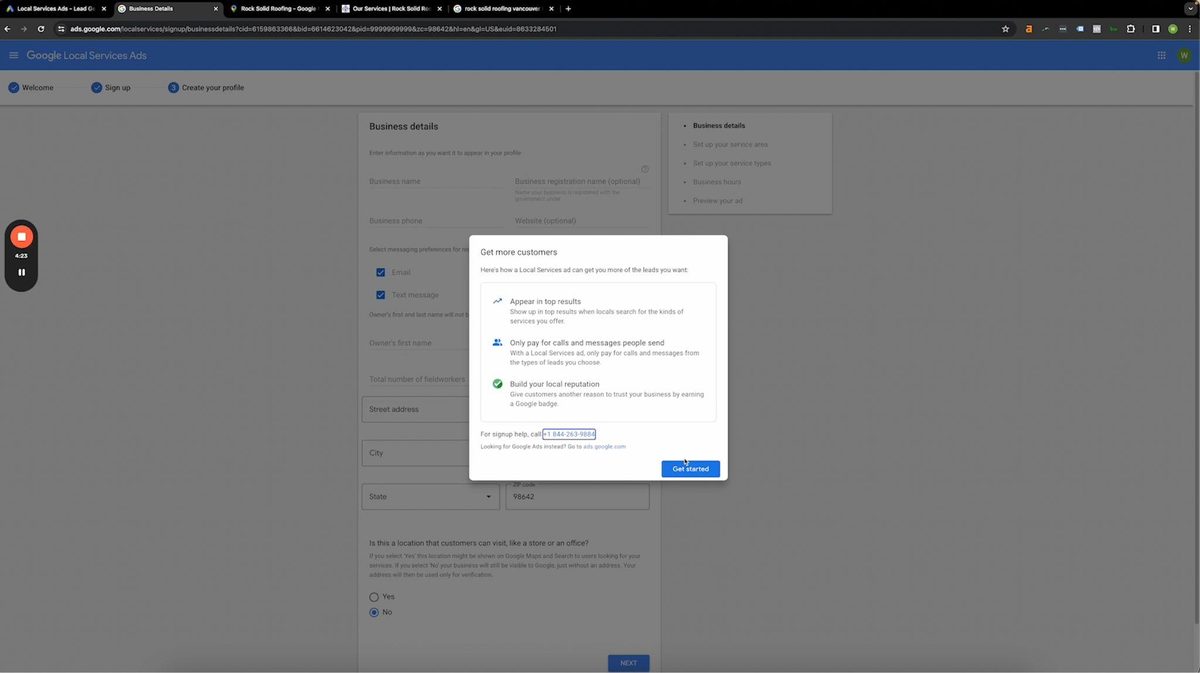
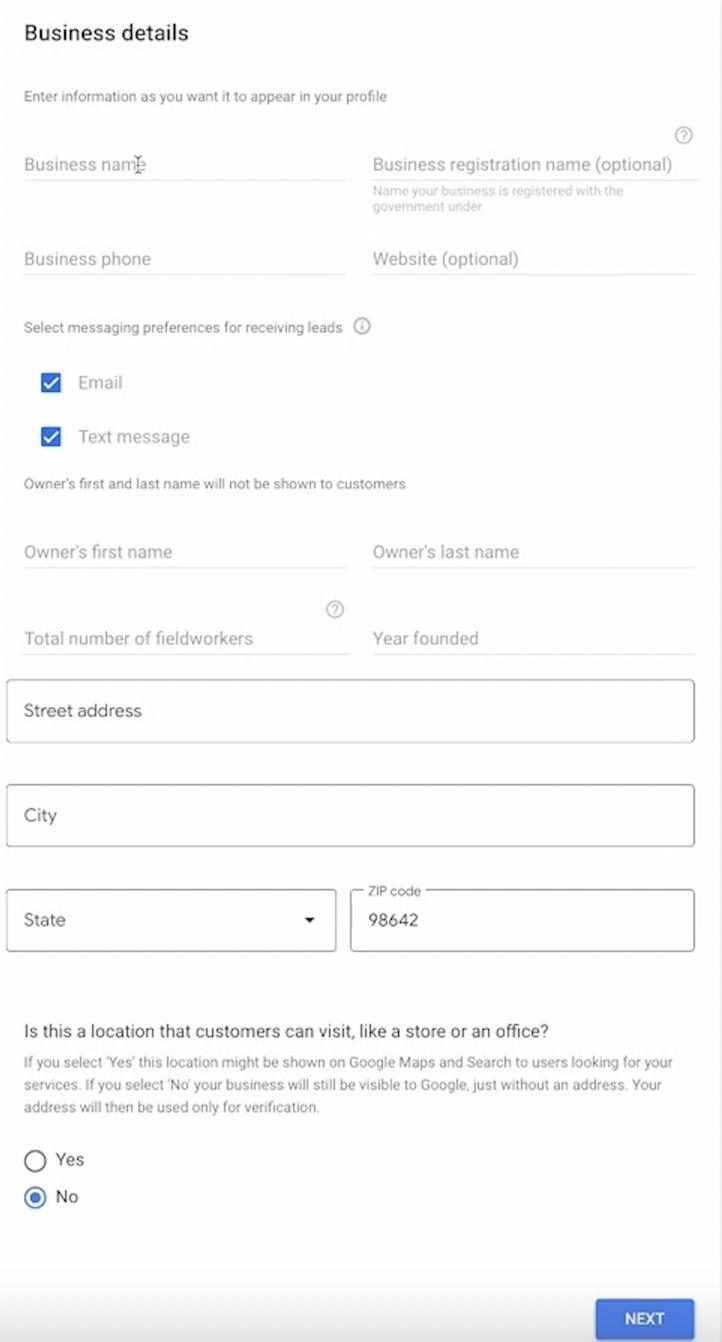
- You will then be asked for the business details seen below. The following information will be needed.
- Business name
- Business registration name (optional)
- Business phone
- Website (optional)
- Messaging preferences for receiving leads (email or text)
- Owner’s first and last name
- Total Number of Fieldworkers*
- Year Founded
- Address (Street, City, State, ZIP code) and
- A confirmation if physical address is available
Ensure that everything is accurate.
*Fieldworkers – anyone that goes into customers houses and has contact with customers. If someone's in the office answering phone calls and never goes to customers' homes, you don't need to include them in this.
If you're using a virtual office, do no, but if it's an office that people are actually at that are customer facing and customers can go in and talk and potentially purchase a service, then hit yes.
Once you fill all this out, you will gain access to the local service ads dashboard.
- After you complete the initial signup process, you'll be directed to a page that looks like this.
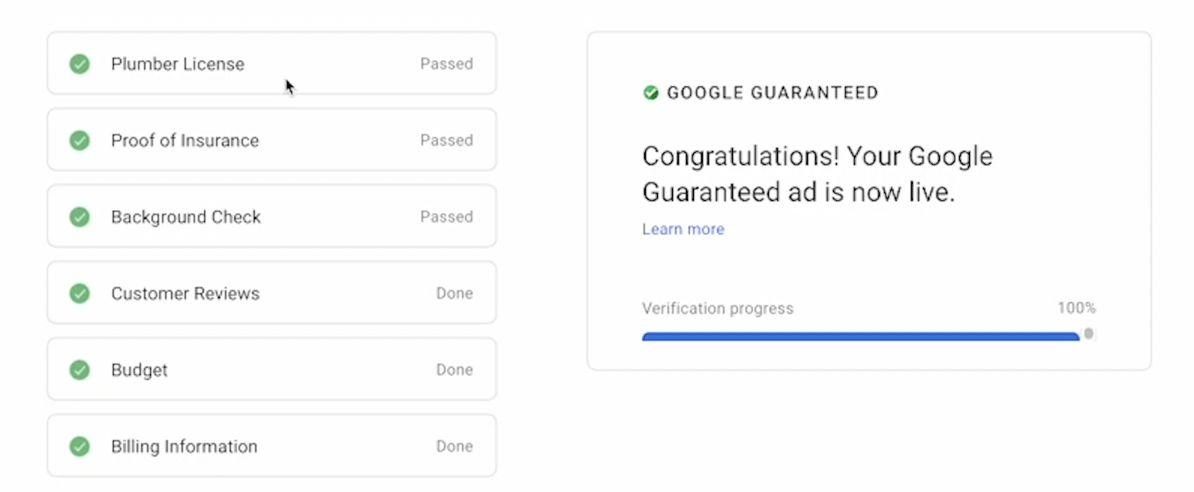
The following are the information needed for verification.
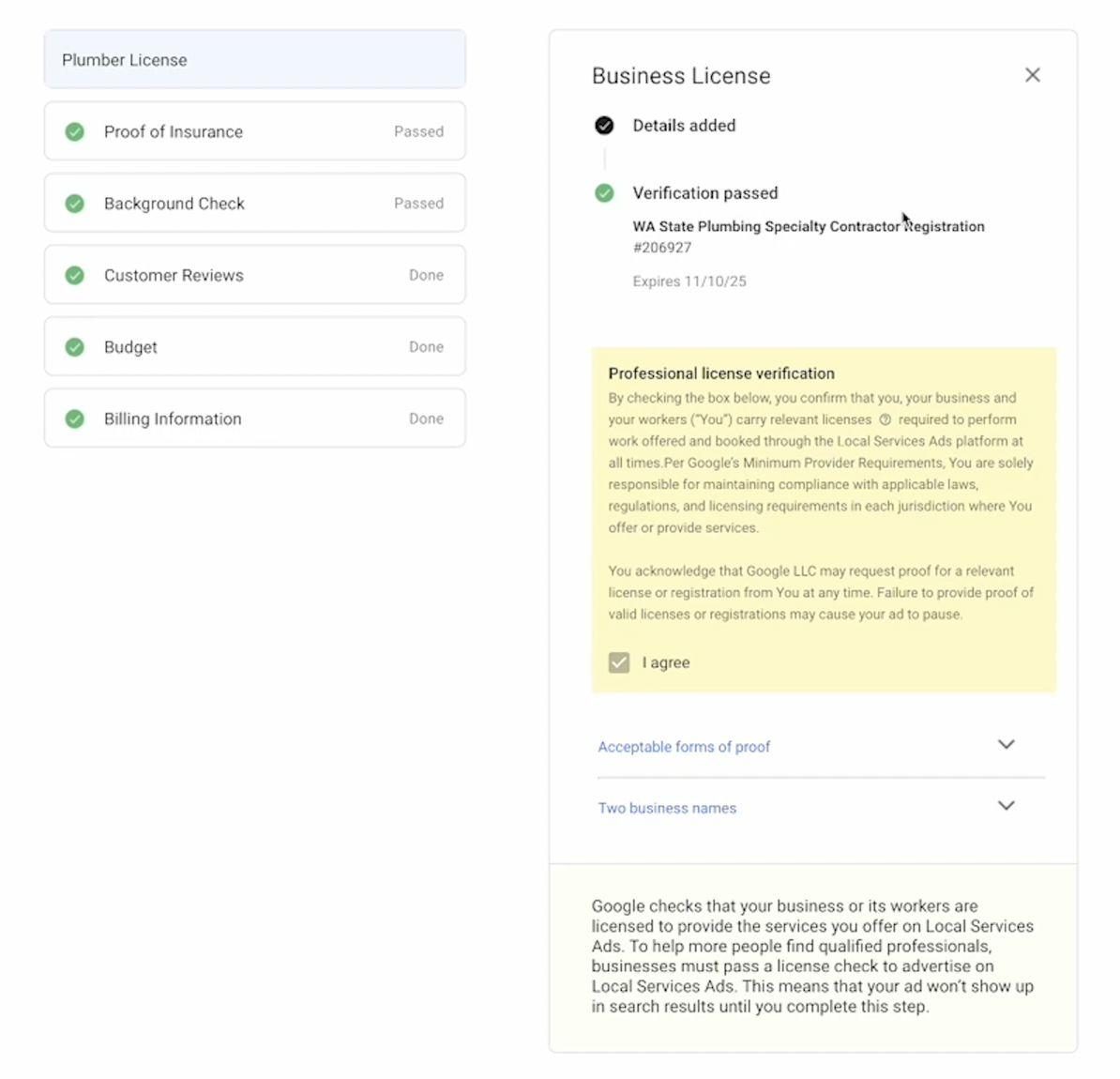
- License Number
Enter your license number here. This could be your pest control license or any other relevant credential you hold. Once entered, you'll be prompted to verify your license.
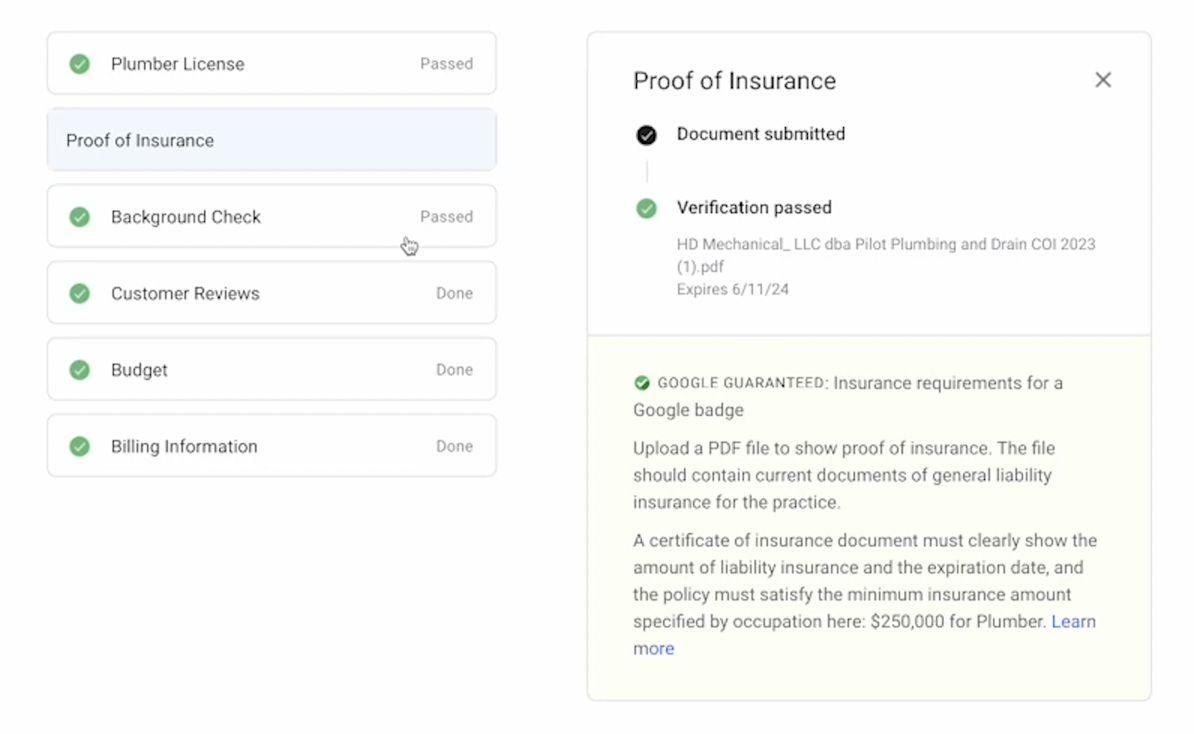
- Proof of Insurance
Upload a PDF file to show proof of insurance. The file should contain current documents of general liability insurance for the practice showing the amount, expiration date, and the policy must satisfy the minimum insurance amount specified by occupation.
- Background Check
This is going to take you to a separate platform where you will enter the emails of all of your field workers and for every person that works at your company that is going into customer homes. Again, this doesn't have to be Like CSRs or people that are just in the office. This is customer facing workers.
- Customer Reviews
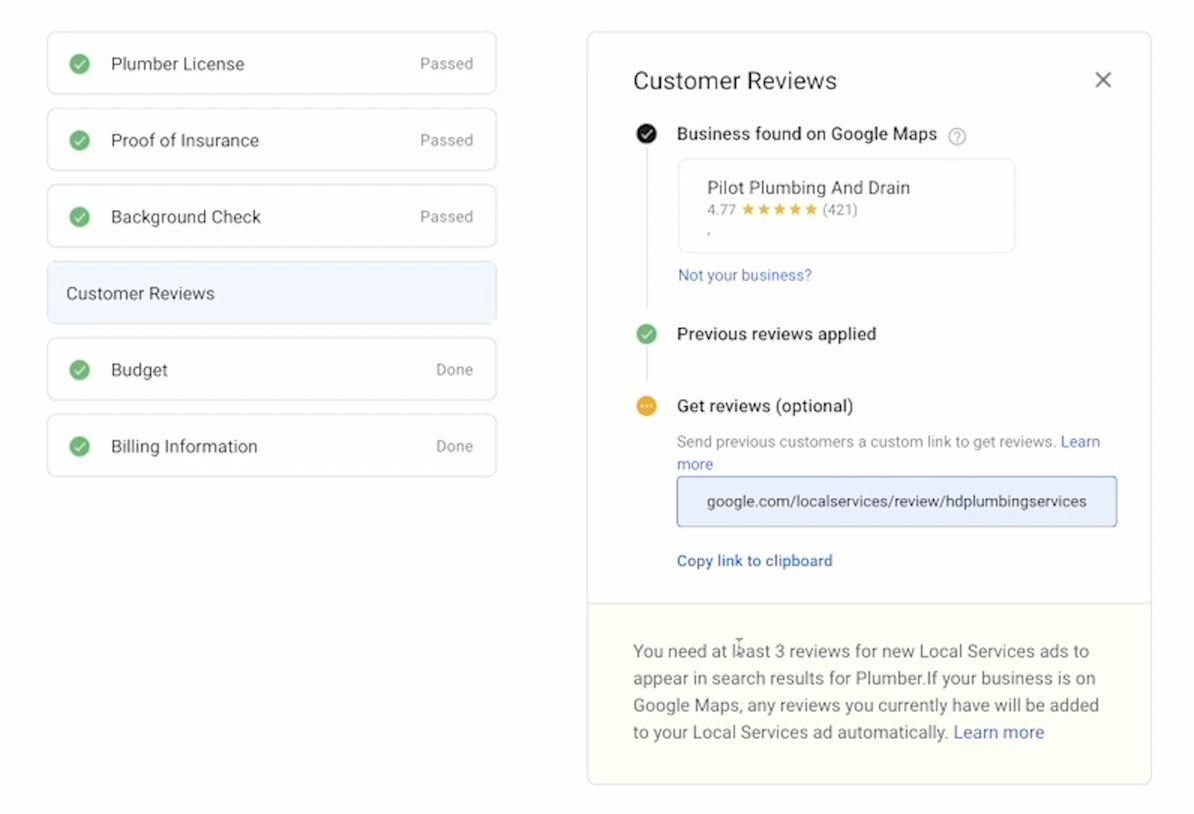
You need at least three reviews for local service ads so make sure that you have three reviews on your Google business profile. If you don't, I would highly recommend just reaching out to previous clients and calling them and saying, “Hey, it would mean a lot if you could write a five star review.” It'll only take two minutes of your time.
Make sure you have the link ready to send to their email. That's a quick way to get three reviews off the bat if you don't already have it. Most of the clients we work with have more than three reviews already, but if they don't, just make sure you get those.
- Budget
Set a flexible price between $500 and $2000 to get started. This will help you land your first few clients without going too low or too high.
- Billing Information
Lead Marking for Google Local Service Ads (LSA) Campaigns
Effective lead marking within the LSA dashboard is crucial for optimizing campaign performance and maximizing call generation. This SOP outlines the process for marking leads and the importance of this practice.
Frequency of Lead Marking
Leads within the LSA dashboard should be marked consistently, ideally on a daily basis. This ensures timely tracking and analysis of campaign performance.
Client Education on Lead Marking
New clients may require an initial explanation of the importance and process of lead marking. This can be achieved through:
- Client onboarding call: During the onboarding process, explain the significance of lead marking and its impact on LSA performance.
- Success story demonstration: Showcase how consistent lead marking has benefitted other LSA clients, highlighting their increased call volume.
Consequences of Not Marking Leads
Failing to mark leads can negatively impact LSA performance. Unmarked leads remain unaccounted for, hindering the ability to:
- Track campaign effectiveness.
- Identify areas for improvement.
- Optimize bidding strategies based on lead data.
Expected Outcome of Consistent Lead Marking
By consistently marking leads, LSA campaigns can expect to experience:
- Increased call volume: Marking leads provides valuable data for optimizing campaigns, leading to a higher conversion rate.
- Improved campaign insights: Marked leads facilitate data analysis, allowing for strategic adjustments to maximize results.
- Enhanced client satisfaction: Consistent lead management demonstrates a commitment to effective campaign management and client success.
Lead marking is an essential component of successful LSA campaigns. Consistent lead marking ensures data accuracy, facilitates campaign optimization, and ultimately leads to increased call generation and client satisfaction.
How to Mark Leads
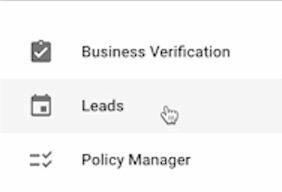
- On the left side of the dashboard, go to “Leads”
- Here’s an example of unmarked leads in the “New” column
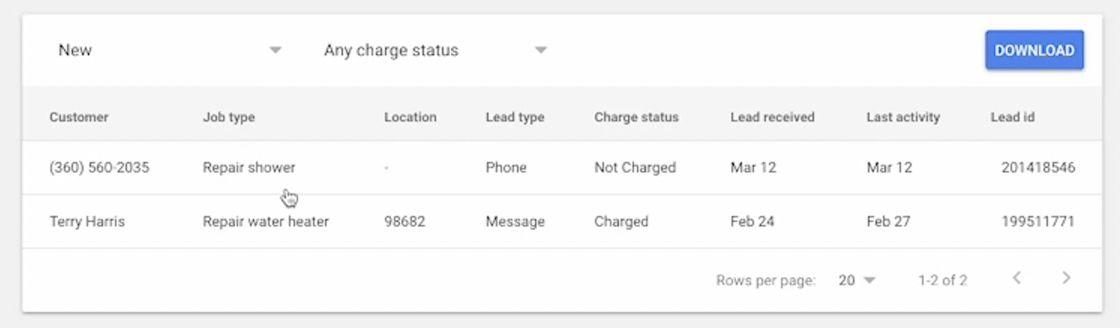
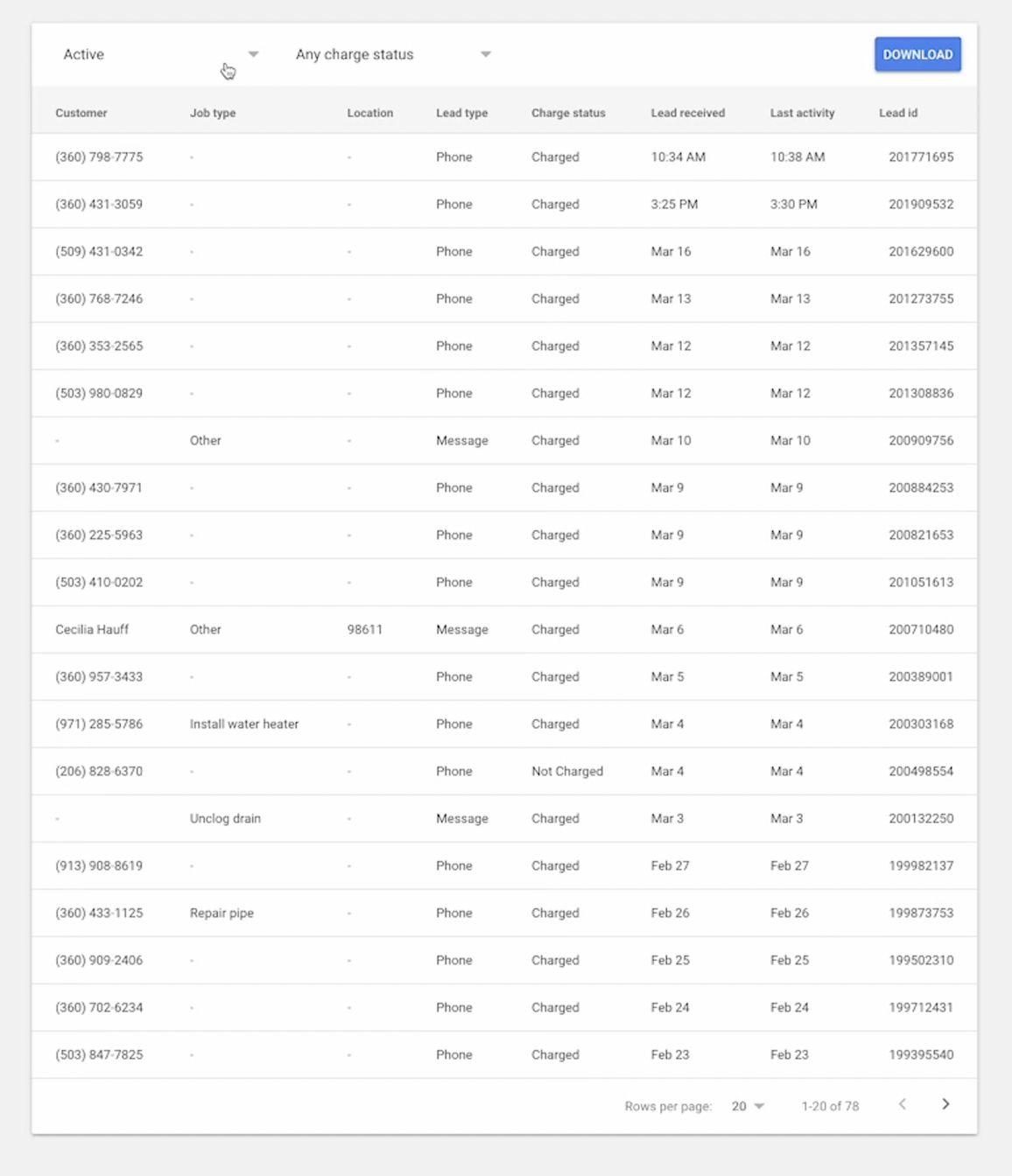
And unmarked leads in the “Active” column.
The current presence of a significant number of unprocessed leads within the LSA dashboard indicates a potential decline in future lead generation. Addressing this backlog is essential to maintain optimal campaign performance.
Let’s take a look at one of the unmarked leads.
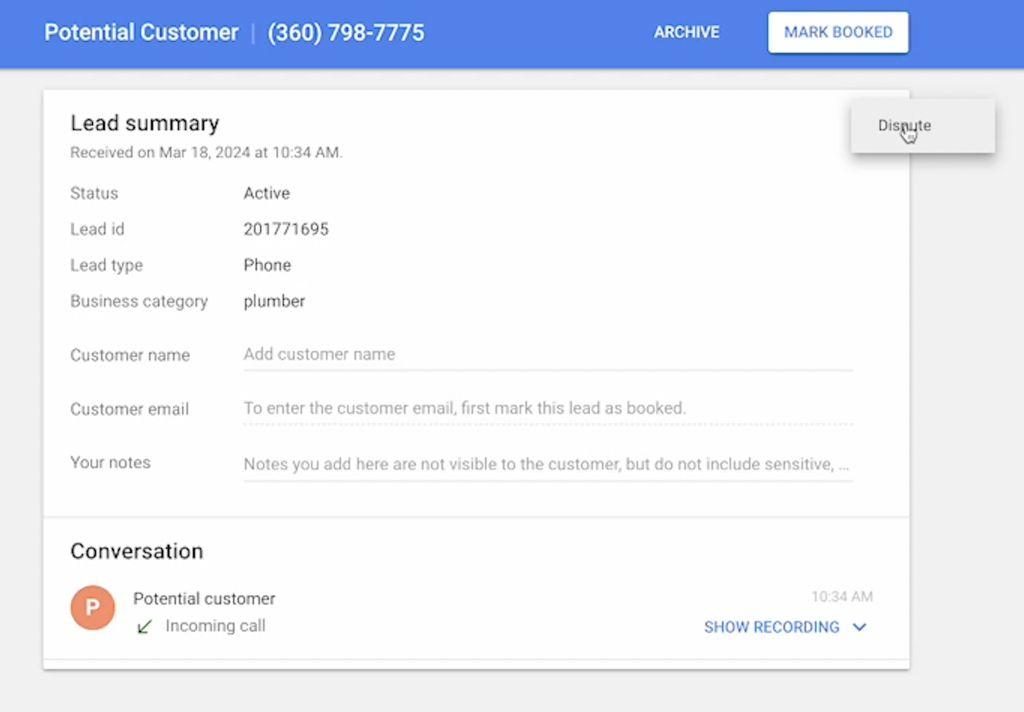
- There are three primary ways to mark a lead within the LSA dashboard:
- Booked: Select this option if the lead resulted in a booked job for your service.
- Archived: This option is appropriate if the lead did not convert into a job but does not qualify for a dispute (e.g., customer inquired about a service not offered).
- Disputed: Choose this option if the lead does not fall within your service parameters or if there was a legitimate reason why you couldn't service the customer.
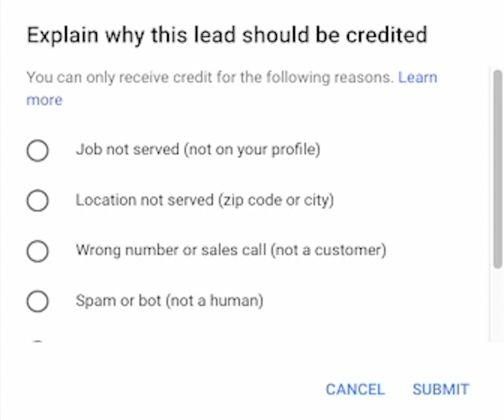
Disputing Leads
Leads can be disputed for various reasons, including:
- Service not offered: The lead inquired about a service not listed on your LSA profile.
- Location not served: The lead originated from a location outside your designated service area.
- Incorrect contact information: The lead contained a wrong phone number or appeared to be a sales call, spam, or bot.
- Duplicate lead: The lead is a duplicate of a previously received inquiry.
- Incorrect business: The lead was intended for a different business.
A pop-up will appear and you can choose the option that is best for the situation.
Deciding When to Dispute Leads
- New LSA Accounts: For accounts in the initial growth stage, consider marking leads as "Booked" or "Archived" even if they don't perfectly align with your services. This helps Google's algorithm gather data and optimize future lead quality.
- Established LSA Accounts: Once your account is established and receiving a consistent flow of qualified leads, prioritize disputing irrelevant leads to avoid unnecessary costs and maintain optimal campaign performance.
LSA Profile Set-up – Profile and Budget
Phone Number Selection
The Google Local Service Ads (LSA) profile allows you to specify the phone number that will be displayed on the ad and receive incoming calls from potential customers. Here's a breakdown of key considerations:
- Flexibility: You are not required to use your primary business phone number for LSA ads.
- Tracking Recommendations: It's highly recommended to utilize a trackable phone number for LSA leads. This allows for:
- Call Attribution: Distinguishing LSA calls from other marketing sources within your Customer Relationship Management (CRM) system.
- Campaign Analysis: Tracking the performance of your LSA campaign based on call volume and conversion rates.
- Compatible Tracking Services: LSA integrates seamlessly with various call tracking services like CallRail. Choose a service that integrates with your preferred CRM for optimal data analysis.
Implementation Steps
- Access your LSA dashboard and navigate to the profile settings section.
- Locate the designated field for entering the phone number.
- Input your desired phone number, be it your business line or a dedicated tracking number.
- Save your profile settings to confirm the phone number selection.
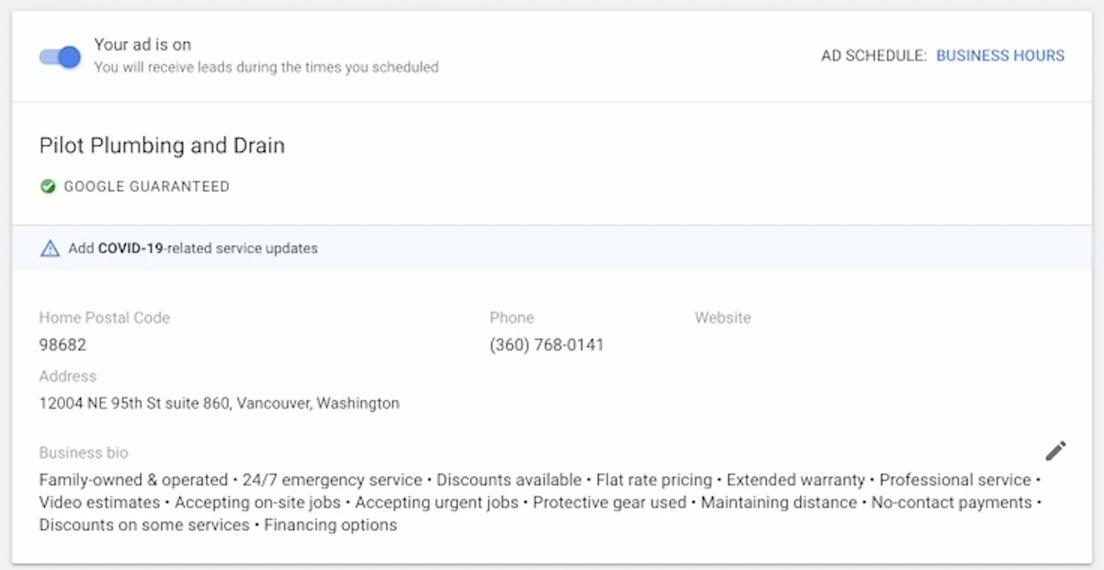
Business Info
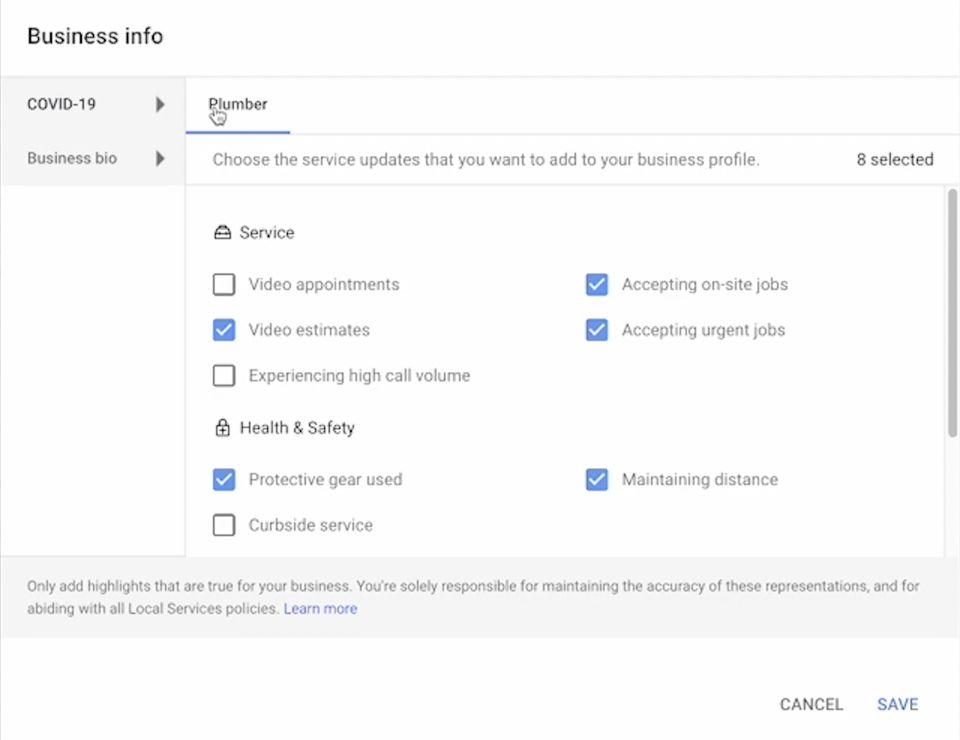
COVID-19
When establishing a profile for COVID-19 related services, ensure all applicable options are selected with the utmost accuracy.
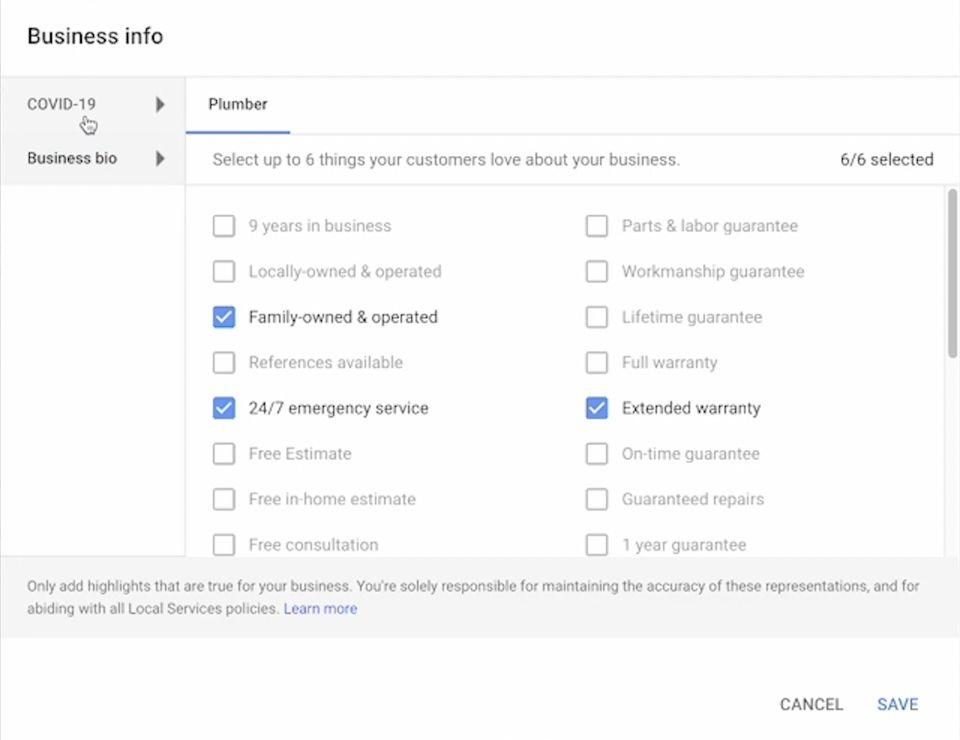
Business Bio
Prioritize Key Service Attributes: While reviewing service attributes, prioritize selecting the most relevant options for your business. These include 24/7 emergency service, extended warranty, professional service discounts, and flat rate pricing. Ensure all six of these options are accurately reflected in your profile.
Budget
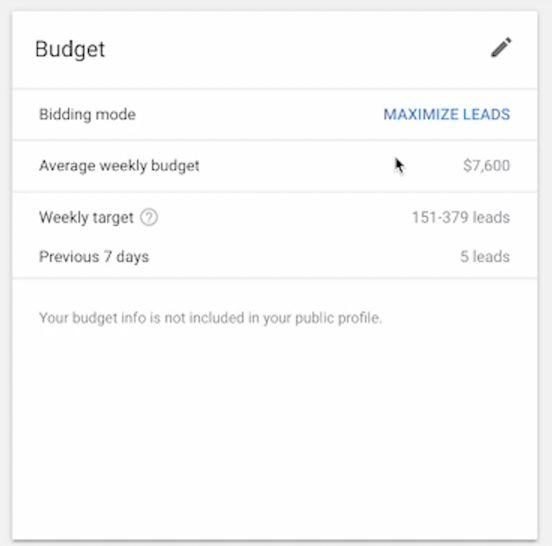
Bidding Strategy
Google Local Service Ads (LSA) offers two primary bidding options:
- Maximize Leads Bidding: This automated bidding strategy prioritizes maximizing the number of leads generated within your designated weekly budget. It's generally recommended for established businesses seeking to optimize lead volume.
- Manual Bidding (Optional): For experienced users, LSA also provides the option to manually set a maximum bid per lead. This approach requires careful monitoring and adjustments based on campaign performance data.
Budget Allocation
For accounts utilizing the "Maximize Leads" bidding strategy, the following budget allocation recommendation applies:
- Target Budget: Set your weekly budget to three times your historical average weekly spend on LSA campaigns. This approach demonstrates your willingness to invest in acquiring more leads and allows the algorithm to optimize lead generation within your budget constraints.
Setting a higher budget signifies your commitment to receiving more leads. This, coupled with consistent lead marking and adherence to best practices, fosters continuous campaign growth.
Regularly monitor your campaign performance and budget utilization. If you're not receiving an adequate number of leads, consider slight adjustments to your budget allocation within the "Maximize Leads" bidding strategy.
Effective LSA campaign management necessitates a well-defined budget strategy. By following these guidelines, you can ensure optimal lead generation while maintaining control over your LSA campaign expenditure.
Job Type Selection
Selecting Relevant Job Types
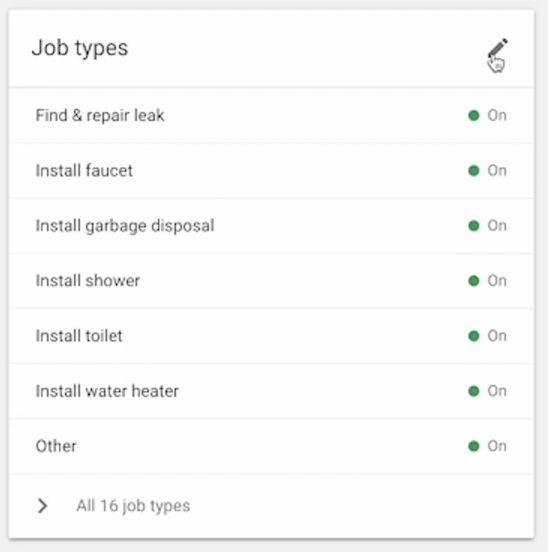
The Google Local Service Ads (LSA) platform allows you to specify the specific job types your business offers. This ensures potential customers searching for those services see your ad.
Here's how to approach job type selection:
- Accuracy is Key: Select only the job types your business genuinely offers and has the capacity to service.
- The "Other" Option: This option can capture inquiries outside your listed services. However, it can also lead to irrelevant calls.
Balancing Lead Volume and Relevance
- Leaving "Other" Checked: This may result in a higher volume of calls, but some may be irrelevant to your core services. Carefully review these leads to determine their validity.
- Unchecking "Other": This can decrease the overall number of calls, but it increases the likelihood of receiving inquiries directly related to your listed services.
Tailoring to Client Needs
The decision to keep "Other" checked should be made on a case-by-case basis, considering the client's priorities.
- Higher Lead Volume: If a client prioritizes maximizing lead volume, keeping "Other" checked might be suitable, even if it includes irrelevant inquiries.
- Improved Call Relevance: Clients prioritizing receiving highly relevant calls might benefit from unchecking "Other," even if it means potentially missing out on some leads.
A strategic approach to job type selection is crucial for optimizing LSA campaigns. Carefully consider the trade-off between lead volume and call relevance, and tailor your choices to each client's specific needs.
Photos
Quality and Quantity
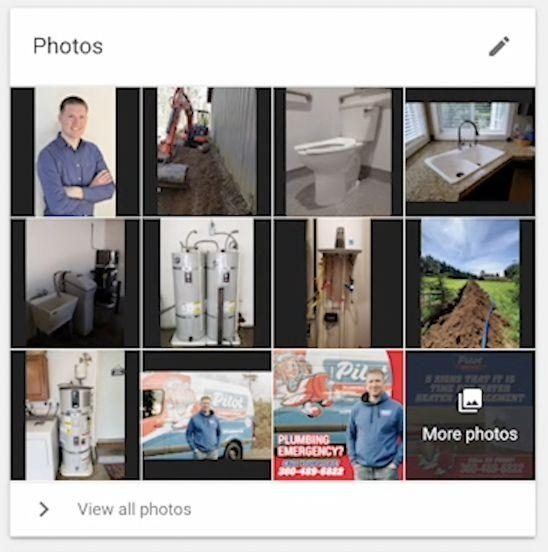
Including high-quality images within your Google Local Service Ads (LSA) profile significantly enhances campaign performance. Visuals play a crucial role in attracting potential customers and establishing trust.
Filling as many image slots as possible within each category is recommended. Google's algorithm may favor profiles with a wider range of visuals, even if individual images aren't perfect.
While absolute professional photography isn't required, prioritize well-lit and clear images that accurately portray your business. Modern smartphones generally capture adequate image quality for LSA purposes.
Image Content Recommendations
Variety is Key: Showcase your business through a diverse range of images across several categories:
- Logos: Include your company logo for brand recognition.
- Company Vehicles: Feature branded vehicles like vans or trucks to demonstrate professionalism.
- Project Photos: Include high-quality images of completed projects to visually represent your services. Consider showcasing before-and-after photos to highlight the impact of your work.
- Workplace Images: Provide photos of your office or work environment to give potential customers a glimpse into your operations.
- Team Photos: Incorporate friendly and professional team photos to personalize your profile and build trust with potential customers.
Investing time and effort into creating a visually appealing LSA profile with a diverse range of high-quality images is a powerful strategy to boost campaign performance and attract more qualified leads.
Service Areas
Defining Service Areas
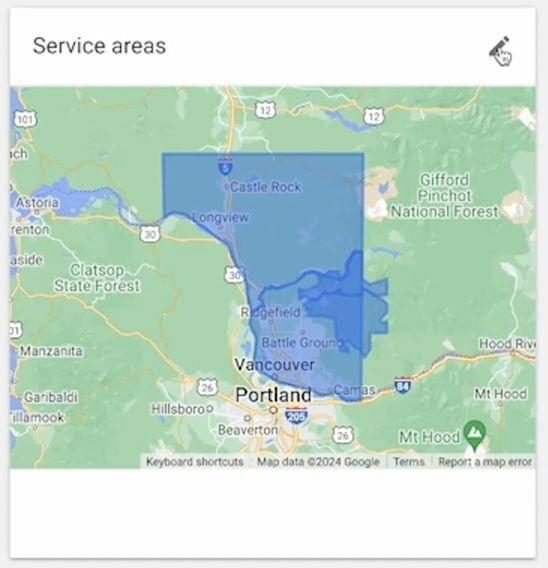
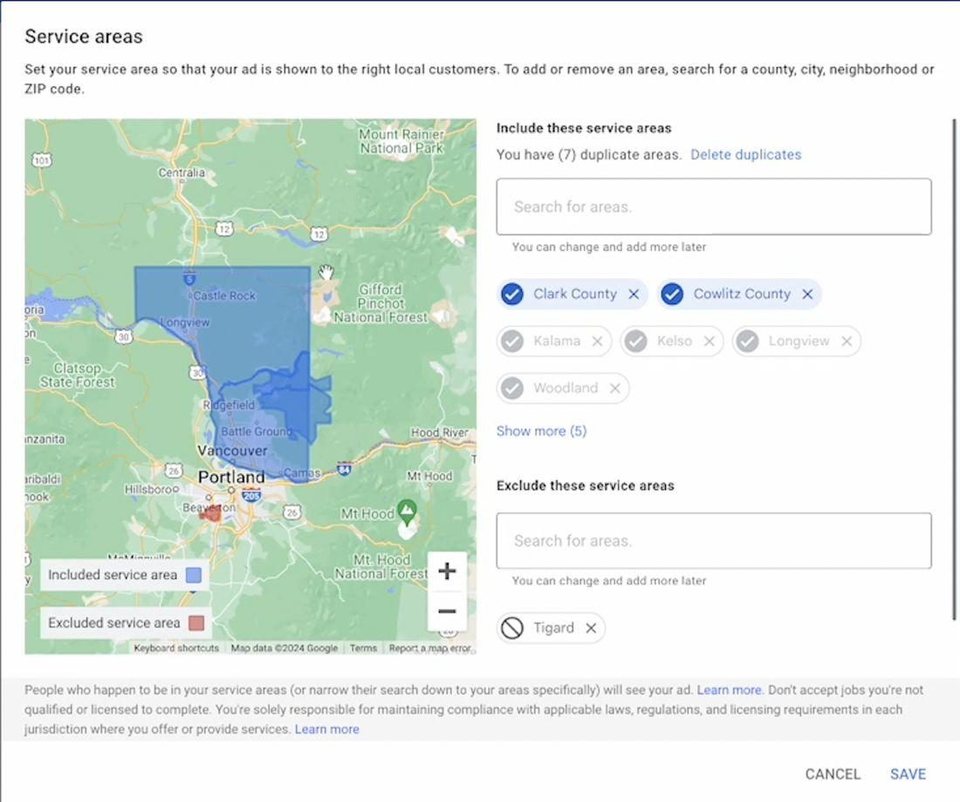
The Google Local Service Ads (LSA) platform allows you to specify the geographic areas where you're willing to provide service. Here's a breakdown of key actions:
- Include Target Service Areas: Clearly identify all locations where your business operates and is prepared to service customers.
- Exclude Unwanted Service Areas: Utilize the exclusion feature to prevent calls originating from areas outside your operational reach. For example, if you don't service Tigard, add it to the exclusion list.
Monitoring and Adjustments
- Identify Out-of-Area Calls: Review call logs to identify instances where calls originated from excluded areas.
- Dispute Out-of-Area Calls: While LSA may occasionally generate leads from excluded areas, you can dispute these occurrences for potential refunds.
- Proactive Management: If you anticipate receiving calls from specific unwanted areas, pre-emptively add them to the exclusion list before receiving irrelevant leads.
Establishing clear service areas within your LSA profile is crucial for optimizing campaign performance and avoiding unnecessary costs from leads outside your operational range. Regularly monitor call logs and proactively manage your exclusion list to ensure you're only receiving leads from your desired service locations.
Business Hours
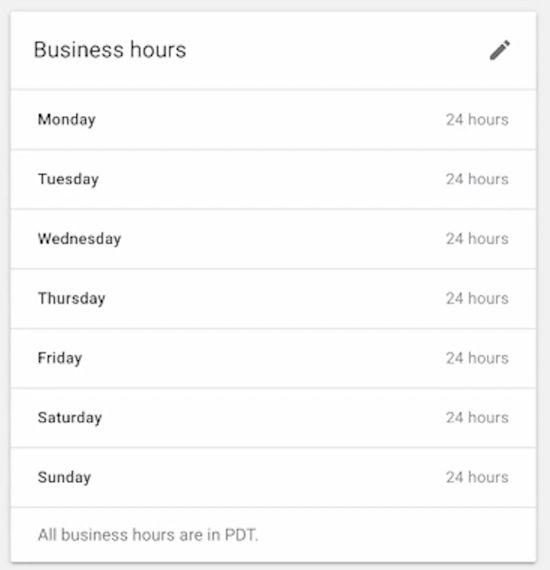
Within your Google Local Service Ads (LSA) profile, business hours specifically represent the timeframe during which a Customer Service Representative (CSR) is available to answer phone calls related to LSA leads. This does not necessarily reflect your overall business operation hours.
Maintaining accurate and up-to-date business hours within your LSA profile is crucial for several reasons:
- Campaign Performance: Google prioritizes sending leads to businesses demonstrably capable of handling them. Inaccurate business hours can hinder lead generation.
- Customer Satisfaction: Potential customers rely on the advertised business hours to determine call timing. Inaccurate information can lead to missed opportunities and negative customer experiences.
- Data Integrity: Maintaining consistent information across your LSA profile, including business hours, ensures Google's algorithm accurately interprets your service availability.
Recommendations
- Configure Precisely: Set your LSA business hours to reflect the exact timeframe when a CSR is readily available to answer calls from potential LSA leads.
- Prioritize Availability: Ensure dedicated CSR coverage during peak call volume times to maximize lead conversion.
Consequences of Inaccuracy
- Reduced Lead Generation: If Google identifies discrepancies between advertised and actual availability, you might receive fewer leads.
- Negative Impact on Campaign Performance: Inaccurate representation can negatively impact overall campaign performance.
Maintaining precise and accurate business hours within your LSA profile demonstrates professionalism and commitment to customer service. This, in turn, plays a significant role in optimizing campaign performance and maximizing positive customer interactions.
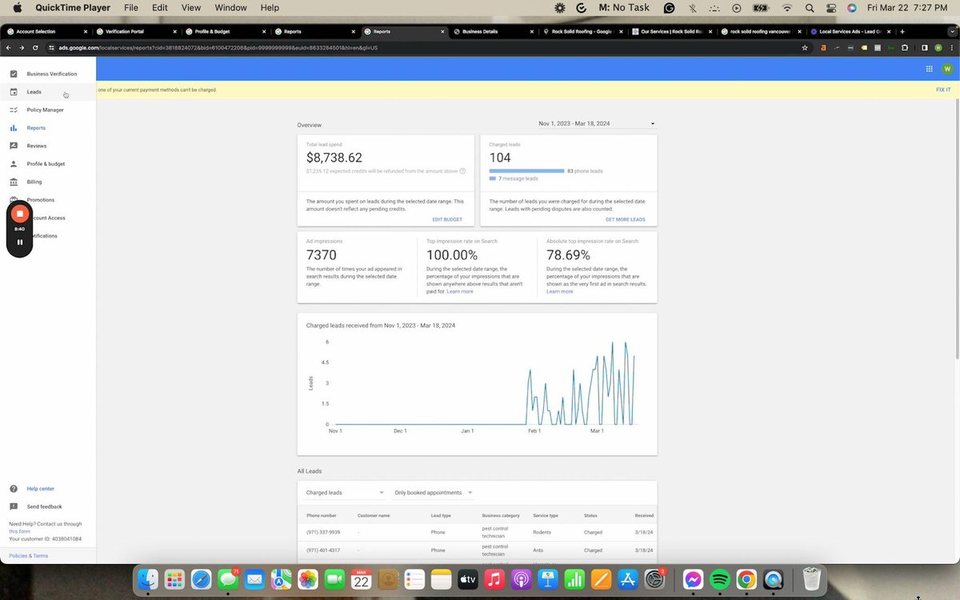
Existing LSA Accounts
For existing LSA accounts seeking optimization, the initial step involves reviewing the "Leads" tab within the LSA dashboard.
@@IMGNone@@
LSA Lead Management and Optimization
Consistent and accurate lead marking within the LSA dashboard is crucial for campaign optimization and maximizing return on investment.
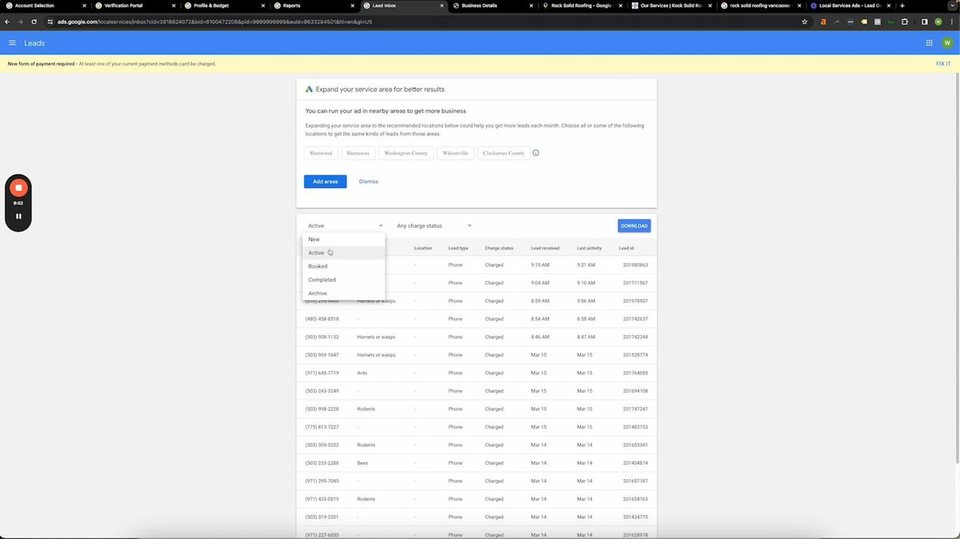
Prioritizing "New" and "Active" Leads
Focus on reviewing and marking leads within the "New" and "Active" categories. These categories often accumulate unmarked leads, leading to potential confusion regarding campaign performance.
Marking Lead Disposition
Accurately mark each lead to reflect its final disposition. Here are the recommended options:
- Booked: Select this option if the lead resulted in a booked job, even if it was a free quote. Demonstrating a high booking rate to Google can positively impact campaign performance.
- Completed: Choose this option for leads where the service was successfully completed.
- Archived: Utilize this option for leads that did not convert into a job but do not qualify for a dispute (e.g., inquired about a service not offered).
- Disputed: Select this option for leads that fall outside your service parameters, or where there was a legitimate reason why you couldn't service the customer.
Effective LSA lead management requires consistent marking and categorization. Prioritize reviewing "New" and "Active" leads, and accurately reflect the outcome of each lead interaction through the available disposition options. This ensures valuable campaign data for performance optimization and demonstrates a commitment to Google's lead management system.
Reports
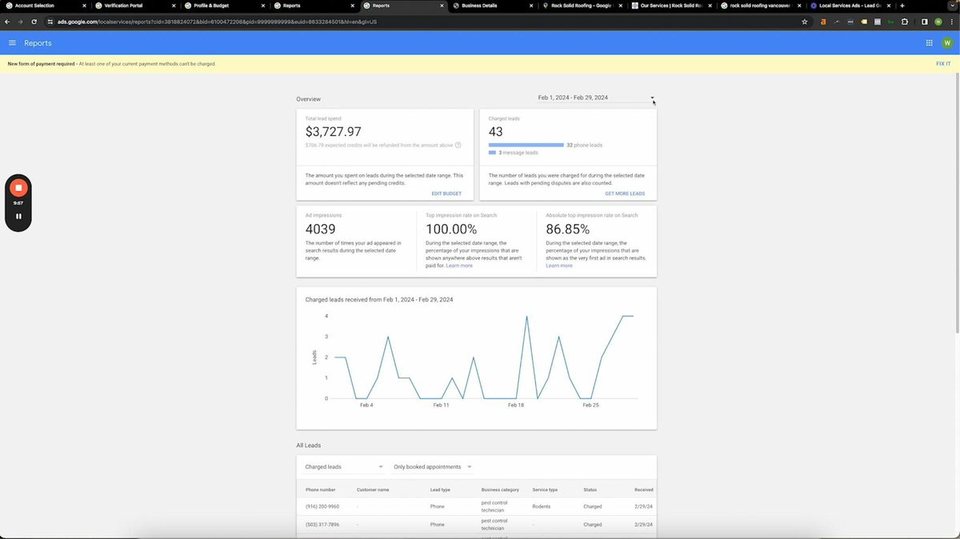
The "Reports" tab within your Google Local Service Ads (LSA) dashboard provides valuable insights into campaign performance. Here's a breakdown of key functionalities:
- Lead Generation Tracking: Monitor the volume of leads generated through your LSA campaign over time.
- Budget Monitoring: Track your weekly LSA campaign expenditure.
The true value of the "Reports'' tab lies in leveraging historical data for campaign optimization. Once a sufficient time frame of data has accumulated (typically several weeks), you can perform comparative analyses such as:
- Month-over-Month Performance: Compare lead generation and budget expenditure between consecutive months to identify trends and areas for potential improvement.
- Week-over-Week Analysis: Analyze lead volume and budget utilization on a weekly basis for a more granular view of campaign performance.
This SOP recommends focusing on the "Last Week's Spend" metric within the "Reports" tab. Utilize this data point to ensure your weekly budget remains consistently set at three times your total lead spend from the previous week. This approach optimizes LSA campaign performance by:
- Maximizing Lead Generation: A higher budget signals to Google your willingness to receive more leads.
- Maintaining Control: Regular budget adjustments based on the previous week's spend ensure you don't overspend.
Reviews
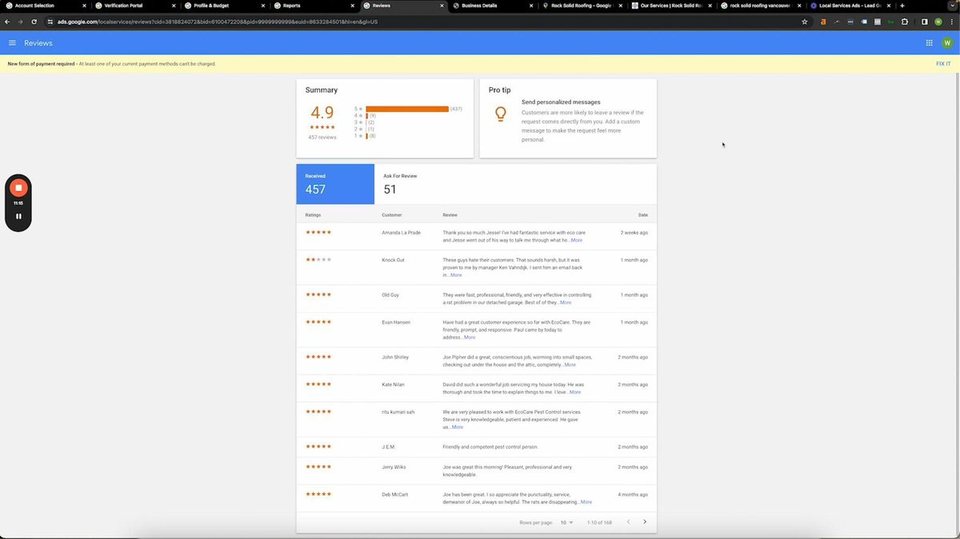
Positive Google reviews significantly impact the visibility and credibility of your Google Local Service Ads (LSA) profile. While anyone can leave a standard Google review, LSA offers a unique opportunity to acquire highly valuable "Google Verified Reviews."
Customers who booked a service through your LSA campaign and had the job completed are eligible to leave a Google Verified Review. This review carries significant weight due to its direct connection to a verified LSA transaction.
Standard Google reviews can be manipulated through unethical practices, while LSA verified reviews provide a reliable indicator of customer satisfaction.
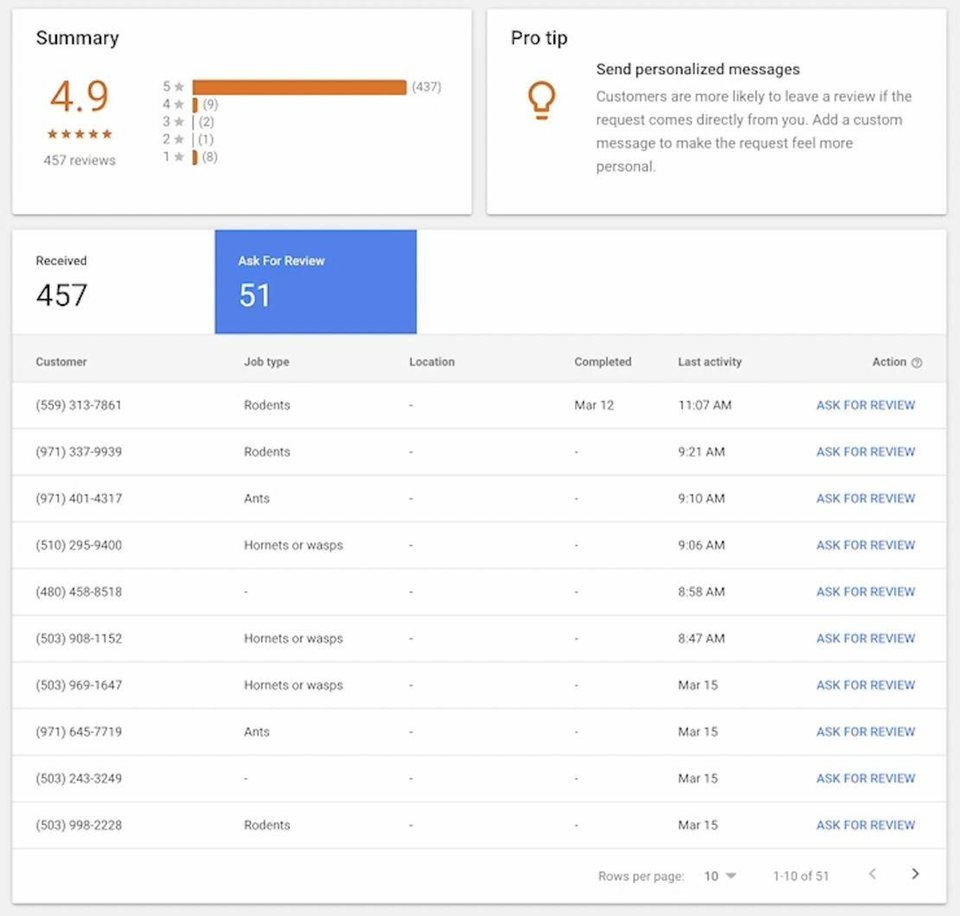
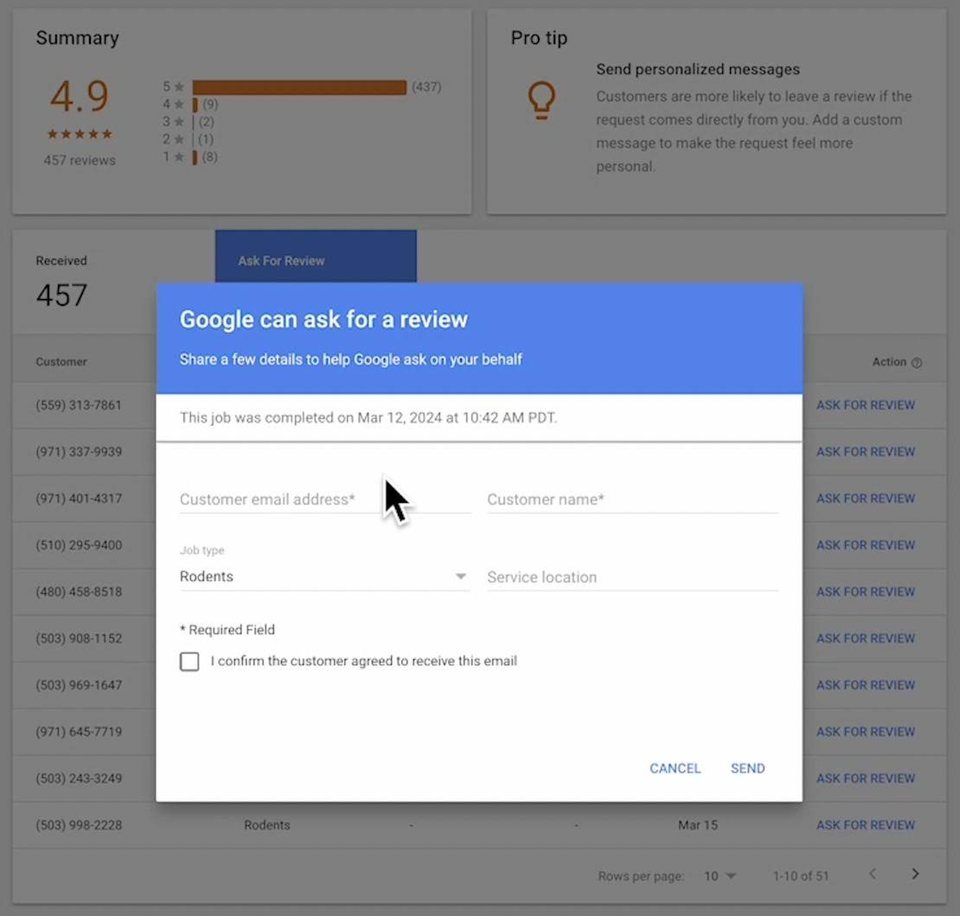
The LSA dashboard provides a dedicated "Reviews" tab with an "Ask for Review" function. Here's how to utilize it effectively:
- Identify Eligible Customers: Navigate to the "Reviews" tab and identify customers who qualify for a Google Verified Review based on completed LSA bookings.
- Requesting Reviews: Utilize the "Ask for Review" function associated with each eligible customer. This sends a personalized request encouraging them to leave a Google Verified Review through a secure link.
Account Access
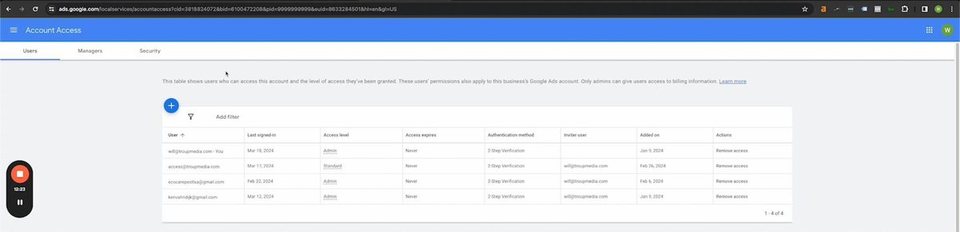
The Google Local Service Ads (LSA) platform provides an "Account Access" page for managing user permissions within your LSA campaign.
Adding New Users
This section outlines the process for granting access to the LSA dashboard to additional users:
- Navigate to Account Access: Locate the "Account Access" section within your LSA dashboard.
- User Invitation: The platform allows you to invite new users by entering their email addresses and assigning specific permission levels.
Permission Levels
Carefully consider the appropriate permission level for each user you invite:
- Full Access: Grants complete control over all aspects of the LSA campaign, including budget management, settings modifications, and lead management.
- Limited Access: Provides restricted access to specific functionalities within the LSA dashboard, tailored to their designated role (e.g., viewing reports, managing leads).
Strategic user management is crucial for maintaining campaign security and accountability. Assigning appropriate permission levels ensures that users can only access functionalities relevant to their responsibilities.
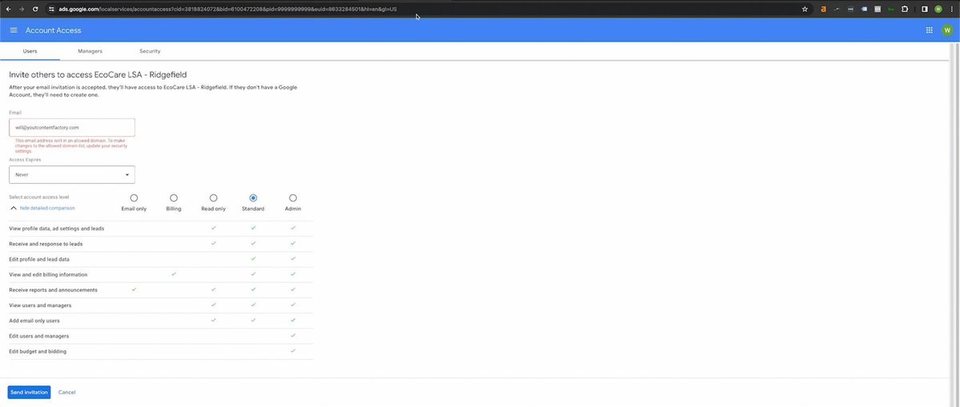
For troubleshooting purposes, it's essential to note that creating a Google Local Service Ads (LSA) campaign automatically generates a corresponding Google Ads account. To access campaign data or address certain issues, ensure you're logged into the original email address used to establish the LSA account. This ensures you have the necessary permissions to manage your LSA campaign within the associated Google Ads platform.
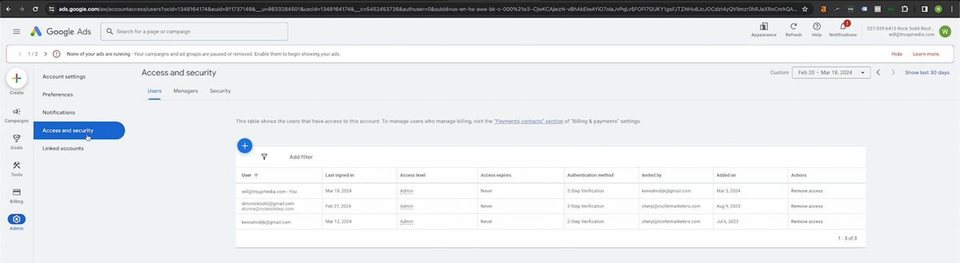
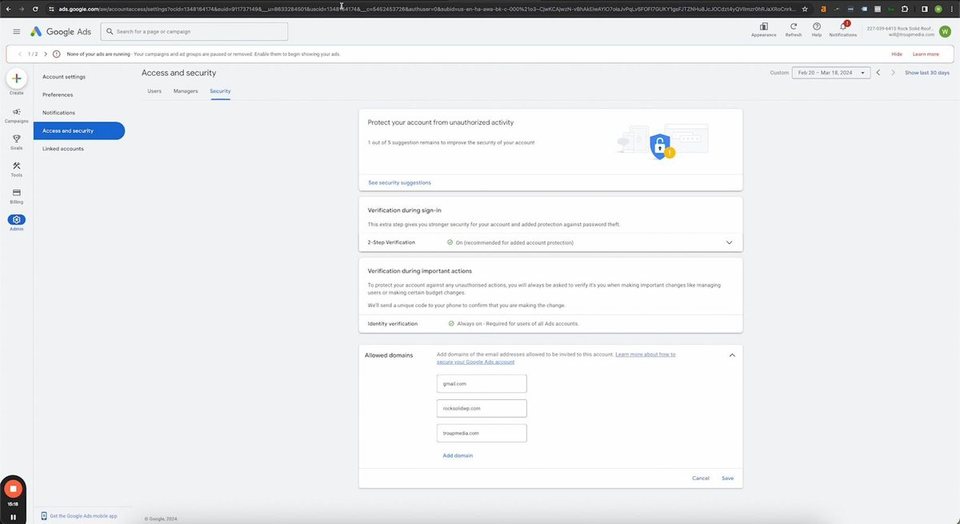
In situations where user access issues arise within your LSA campaign, navigate to the Access and security section on the right within the Admin settings of your Google Ads account. Locate the Allowed domains list within the Security settings.
@@IMGNone@@
In the Allowed Domains area, click “Add domain” and now this will be an allowed domain, and then you'll be able to add it in the local service ads account.
Notifications
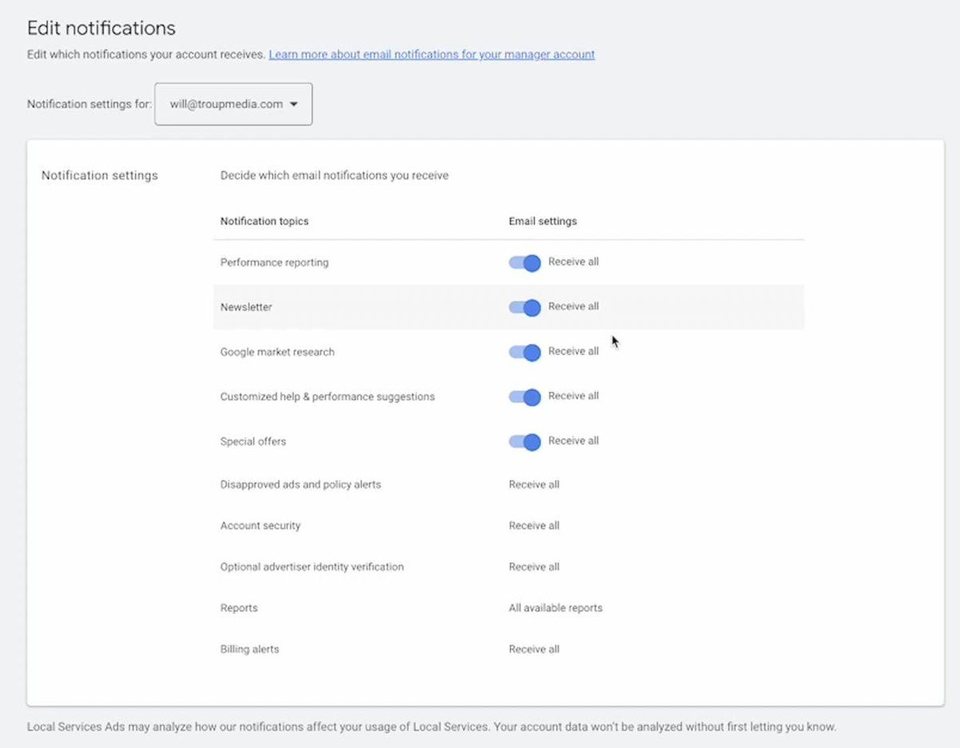
The Google Ads platform allows you to customize notification settings related to your LSA campaign performance. These alerts can provide valuable insights and ensure you stay informed about campaign activity.
Configuring Notification Preferences
- Access the settings menu within your Google Ads account.
- Locate the "Notifications" section.
- You can choose to receive various alerts, including:
- Lead updates (e.g., new leads, booked appointments)
- Performance reports
- Budget alerts
For Agencies: If you manage LSA campaigns for clients, consider enabling all notification options to ensure you receive comprehensive campaign data and can provide detailed reports.
For Internal Teams: Internal LSA management teams can tailor notification preferences based on individual roles and responsibilities.
Customizing your LSA notification settings allows you to stay informed about campaign performance and make data-driven decisions for optimization. Regular reporting and communication are crucial for successful LSA campaign management, especially when working with external agencies.
Put this chapter to work
Want to know exactly where your pest control company stands? Get your free marketing audit — we score what’s already public about you and show you the gaps before you spend a dollar.
Building your name, not just your company? The Pest Control Spotlight plan puts a personal brand website behind you for $99/month.
← Google Business Profile for Pest Control Companies · All chapters · Location Service Pages That Win Pest Control Jobs →